◑ Is Wrike Right for You?
What it is: Enterprise-grade project management with Gantt charts, automation, and 400+ integrations. Pricing: $10-$25/user/month.
Best for: Teams of 15-200 who need serious project management muscle—Gantt charts, resource planning, custom workflows—and can invest time learning the system.
Main limitation: Steep learning curve. Your team will spend weeks getting comfortable, not hours.
Get it if: You're outgrowing simpler tools and need advanced features like time tracking, automation (up to 1,000 actions/month on Enterprise), and detailed reporting.
Skip it if: You want something your team can master in an afternoon, or you're a small team under 10 people who doesn't need enterprise complexity.
⏼ Why Wrike?
Here's the deal: Wrike is what happens when you prioritize power over simplicity. After analyzing 4,600+ verified reviews, the pattern is clear—teams either love Wrike's customization or feel buried by its complexity.
The platform serves 20,000+ companies including Siemens and Sony, but it's not trying to be everyone's favorite tool. It's built for teams managing multiple complex projects who need visibility across departments.
✔ The Power Play: Features That Justify the Learning Curve
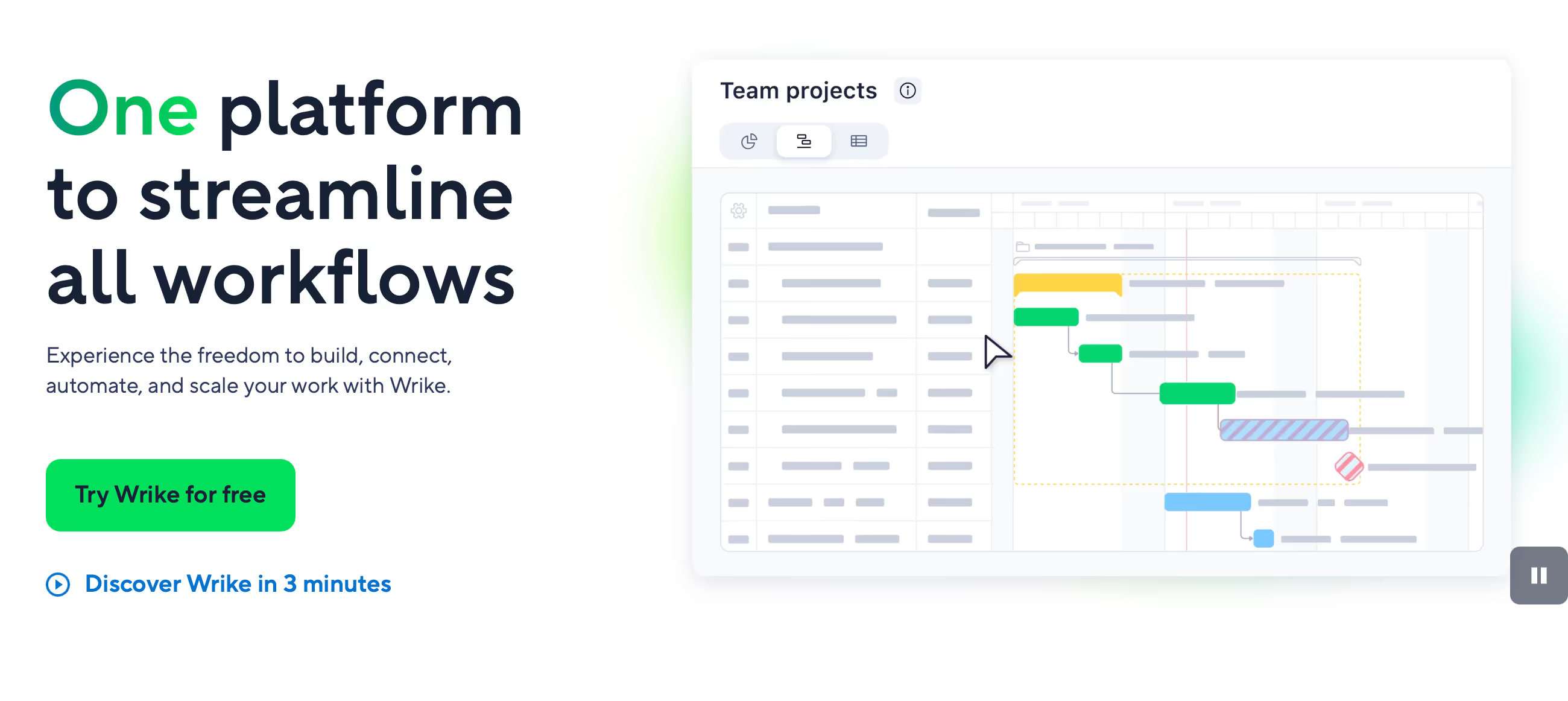
Wrike's Gantt charts aren't just pretty timelines—they automatically adjust dependent tasks when deadlines shift. Change one date, watch the waterfall effect update your entire project. Marketing teams save hours on campaign planning, IT departments track sprints and backlogs, and professional services firms manage client work across continents.
The customization runs deep. Custom fields, workflows, request forms, dashboards—basically every element can be molded to match how your team actually works. But here's the catch: someone needs to do that molding.
✔ Integration Ecosystem That Actually Works
Those 400+ integrations aren't marketing fluff. Native connections to Salesforce, Adobe Creative Cloud, Jira, GitHub, Tableau, and practically every productivity tool your company uses. Two-way sync keeps data flowing without manual exports.
The API access (Business plan and up) lets technical teams build custom integrations. One user reported cutting email volume by 90% after connecting their entire tool stack.

✎ What Wrike Users Typically Achieve
Wrike delivers measurable results for teams who commit to learning it.
Typical results: Aerotek reduced emails 90% and cut 1.5 weeks from planning cycles. Granicus increased time tracking compliance 20%. Fitbit eliminated 400 hours of annual meetings and cut project management time 50%. Marketing teams complete projects 25% faster with Blueprint templates.
💡 Pro Tip: Don't try to use every feature on day one. Master task management and Gantt charts first, then add automation and custom workflows as your team gets comfortable. Rushing the learning curve creates frustrated users who revert to email.
⛭ How Wrike Works
Wrike organizes work in a hierarchical structure: Spaces (departments/clients) contain Projects, which break down into Tasks and Subtasks. Think folders within folders, but with dependencies, deadlines, and automation attached.
Setup Reality Check
The 14-day free trial gives you Business plan access, but don't expect to master Wrike in two weeks. Most teams report 2-4 weeks of meaningful adoption time, longer if you're building custom workflows.
Smart approach: Start simple. Create a few projects, assign tasks, get comfortable with basic views. Then layer in Gantt charts, automation, custom fields. One reviewer who migrated from ClickUp noted: "ClickUp took me 3 hours to understand. Wrike took 3 weeks, but now it handles complexity ClickUp couldn't."
Daily Operations
You'll work across multiple views—List, Board, Gantt, Table, Calendar. Each team member can set their preferred default. Dashboards aggregate data from multiple projects, and the search function (praised in dozens of reviews) helps you find specific tasks across hundreds of projects.
Time tracking is built into tasks from the Business plan up. Start/stop timers, manual entries, billable hours—it's all there. But unlike dedicated time-tracking tools, you can't run reports on profitability without exporting to Excel or connecting to a BI tool.
⏻ Core Features & Capabilities
Wrike's feature set targets teams who've outgrown Trello but aren't ready for Microsoft Project's complexity.
✔ Task & Project Management That Scales
Create tasks with unlimited subtasks, dependencies, custom statuses, and assignees. Cross-tag tasks to appear in multiple projects. The proofing feature lets reviewers comment directly on creative files—agencies praise this for cutting approval cycles.
The Blueprint feature (Business plan) turns successful projects into reusable templates with all workflows, automation, and fields intact. Launch new client campaigns in minutes instead of hours.
✔ Automation Worth the Upgrade
Free and Team plans offer basic automation. Business gets 200 actions per user monthly, Enterprise jumps to 1,000. Actions include status updates, task creation, approval requests, and notifications.
The AI features (free until March 2026, then paid add-on) generate subtasks from prompts, summarize comment threads, and help build automation rules in plain language. Early adopters report 25% faster project setup.
✔ Reporting That Needs Patience
Wrike's reporting wizard lets you build custom reports from scratch, but reviewers consistently note it's "overly complicated." The widgets and filters require understanding Wrike's data structure. Budget 2-3 hours learning report building if you need anything beyond the standard templates.
🚀 Quick Win: Use the free 14-day trial to test Wrike with a real project—not a demo. Import an actual client brief or campaign, build it out, see if your team can navigate it. That's your adoption reality check.
⍟ The Verdict: Our Assessment
Overall Rating: 8.2/10. Recommended for teams who need enterprise features and can commit to the learning investment.
Bottom Line: Choose Wrike when your projects are complex enough that the learning curve pays off. Skip it if you want simplicity over power, or your team is under 15 people who don't need Gantt charts and resource planning.
✩ What Users Say: Reviews & Ratings
User ratings: 4.2/5 on G2 (4,600+ reviews), 4.3/5 on Capterra (2,800+ reviews), 4.3/5 on GetApp (2,800+ reviews).
✔ Pros: What Users Love
- Gantt Charts That Work: Automatic dependency updates save hours when timelines shift—one team reported 1.5 weeks off their planning cycle.
- Customization Freedom: Mold every aspect to your workflow, from custom fields to automation rules to dashboard widgets.
- Integration Depth: Connects your entire tool stack—Salesforce, Adobe, Jira, GitHub—without middleware.
- Customer Support Excellence: Dedicated success managers and fast response times earn consistent praise.
✗ Cons: Common Complaints
- Learning Curve Is Real: Expect 2-4 weeks of meaningful adoption time. Several reviewers called it "overwhelming" initially.
- Pricing Complexity: Features locked behind tiers, add-ons for premium functionality, minimum seat requirements (2 for Team, 5 for Business).
- Feature Changes Without Notice: Multiple users complained about features being removed or changed with minimal communication.
- Notification Overload: Default settings flood you with updates—plan to spend time configuring notification preferences.
⚠ 3 Critical Mistakes to Avoid
Mistake #1: Underestimating the Minimum Seat Requirements
The Problem: Business plan requires minimum 5 seats at $24.80/user/month. A 3-person agency budgeted for $74.40/month ($24.80 × 3), discovered they'd pay $124/month ($24.80 × 5 minimum seats) for features they needed. Two unused seats cost them $1,200 annually.
The Cost: Annual overspend: expected $892.80, actual $1,488—a $595.20 surprise. Plus the frustration of paying for seats nobody uses.
⚡ How to Avoid It: Calculate true minimum cost before committing. Team plan ($10/user/month, 2-seat minimum) might cover your needs. If Business features are essential, consider if you have 5 people who'll actually use it—contractors, clients, part-timers count toward seats.
Mistake #2: Skipping the Structured Onboarding
The Problem: Teams jump into Wrike, create projects randomly, build workflows inconsistently, and end up with a messy workspace that's harder to navigate than email. One IT manager reported their team "fragmented" Wrike across departments with conflicting setups.
The Cost: Adoption stalls around 40-60%. Teams maintain parallel systems (email + Wrike), defeating the purpose. Cleanup requires 20-30 hours of admin work restructuring everything.
⚡ How to Avoid It: Invest 2-3 hours in planning before creating your first project. Map your workflow, decide on naming conventions, plan your folder/space structure, identify which custom fields you need. Run a pilot project with one team, refine the approach, then roll out company-wide. Use Wrike's community resources and training—they're actually helpful.
Mistake #3: Ignoring the Free Plan Limitations
The Problem: Teams test Wrike on the Free plan (unlimited users, 2GB storage) expecting to see the tool's full power. The Free plan caps you at 200 active tasks and hides key views—no Gantt charts, no Calendar, no Table view, no automation, no custom fields. You're evaluating 20% of the platform.
The Cost: You dismiss Wrike as "too basic" without seeing what makes it valuable. Or worse, you commit based on Free plan experience, upgrade to paid, and face a completely different learning curve.
⚡ How to Avoid It: Use the 14-day Business trial (no credit card required) for evaluation. It unlocks the real Wrike—Gantt charts, automation, custom workflows, dashboards. Test with actual projects, not hypotheticals. The Business trial shows you what you're actually buying.
FAQ
What's the learning curve for Wrike?
Plan for 2-4 weeks of meaningful adoption. The interface is intuitive enough to create basic tasks immediately, but mastering Gantt charts, automation, and custom workflows requires dedicated learning time. Most successful teams invest in structured onboarding.
How does Wrike pricing actually work?
Free plan supports unlimited users with 200 active tasks. Team plan is $10/user/month (2-seat minimum), Business is $24.80/user/month (5-seat minimum). Enterprise and Pinnacle are custom-priced. Annual billing required for Business and up. Seats are sold in groups: bundles of 5 up to 30 users, bundles of 10 for 30-100 users, bundles of 25 for 100+ users.
Does Wrike integrate with our existing tools?
Wrike offers 400+ native integrations including Salesforce, Adobe Creative Cloud, Jira, GitHub, Tableau, Slack, Microsoft Teams, and Google Workspace. API access available on Business plan and up for custom integrations. Two-way sync capabilities keep data flowing between systems.
Can we migrate from our current PM tool?
Yes. Wrike provides import tools for common platforms and dedicated migration support for Enterprise customers. Most teams report 1-2 weeks for full migration including data cleanup and team training. Start with a pilot project to test the migration process before moving everything.
What support does Wrike provide?
All paid plans include help center and ticket support. Business plan adds priority email support. Enterprise and Pinnacle include dedicated customer success managers, premium support, and faster response times. Community forums are active and helpful. Users consistently praise support quality across reviews.
Is Wrike secure enough for enterprise use?
Yes. SOC 2 Type II certified, ISO 27001 compliant, GDPR ready. Enterprise plan adds SSO via SAML, two-factor authentication, password policies, custom access roles, and user audit reports. Wrike Lock add-on provides customer-managed encryption. Data centers in US and EU available.
Suggestly
Find your best-fit B2B tool in 90 seconds
✓ Free personalized recommendations
✓ Based on YOUR business needs
✓ No signup required

Wrike