✨ Is Canva Right for You?
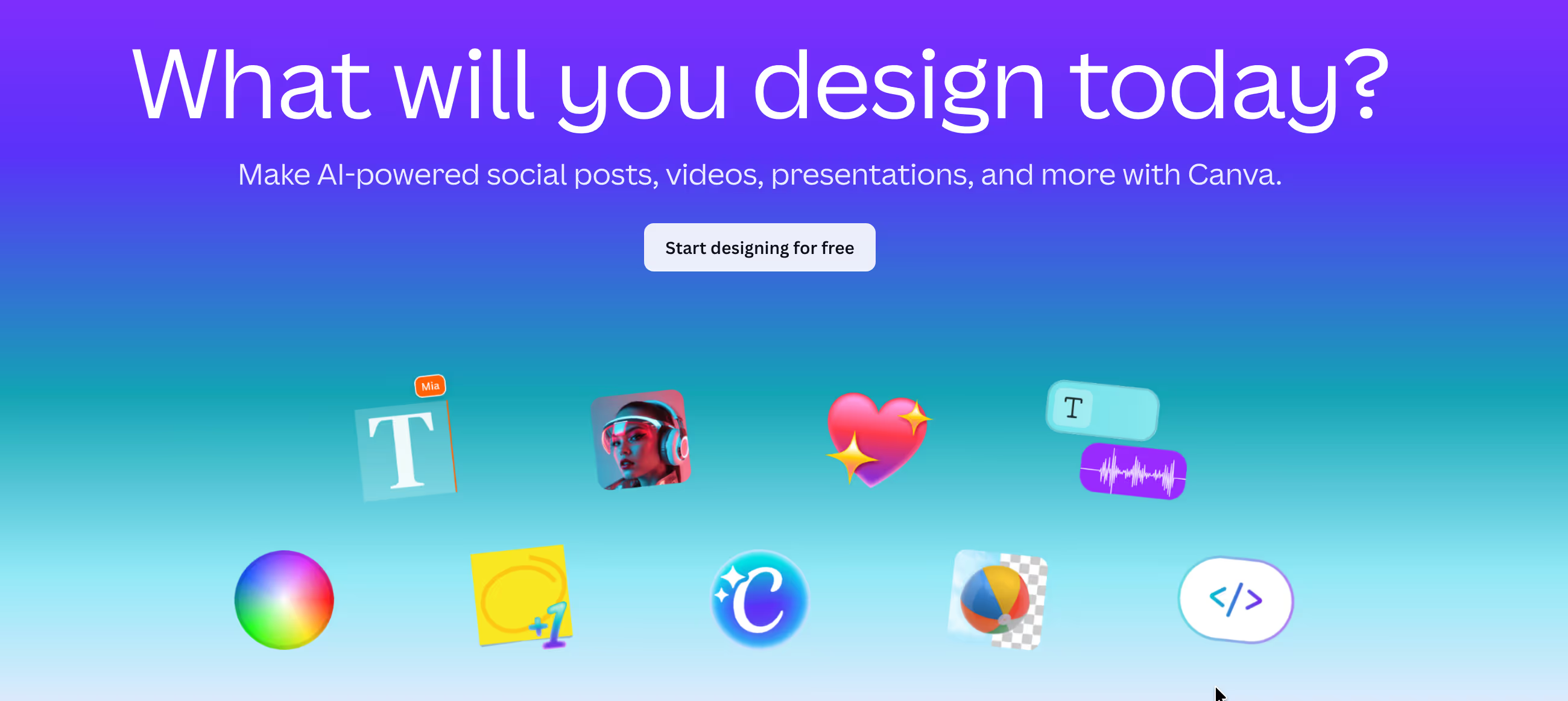
What it is: Browser-based graphic design platform with drag-and-drop editing, 2M+ templates, AI-powered tools, and 100M+ stock assets designed specifically for non-designers to create professional visuals.
Best for: Small businesses and marketers creating social media content, non-designers needing professional-looking graphics quickly, and teams wanting brand consistency without hiring designers.
Main limitation: Limited customization compared to professional tools like Photoshop or Illustrator, email-only customer support that's notoriously slow, and reliance on internet connection for all functionality creates workflow disruptions.
Get it if: You need to create social media graphics, presentations, or marketing materials without design training, you're managing brand assets across a team, or you want templates that look professional without starting from scratch.
Skip it if: You need advanced design control with layers and precision editing, you work offline frequently, or you require professional-grade outputs for print or broadcast (Canva's export options are limited for complex projects).
🎯 Why Canva?
Most design tools require years of training to produce decent results. Canva flips that model by giving non-designers the templates, assets, and guardrails they need to create professional-looking graphics immediately, which explains why 260 million people use it monthly.
🎨 Templates Eliminate Starting From Scratch
Canva provides over 20,000 presentation templates, 1,900+ document templates, and thousands more for social media, marketing materials, and business documents. Instead of facing blank canvases that paralyze non-designers, you start with professionally designed layouts that already work visually. Customizing existing templates requires minimal design knowledge—swap images, change text, adjust colors—while maintaining visual coherence that would take professionals hours to create from scratch.
💎 Stock Library Saves Thousands Annually
Pro subscribers access 100 million premium stock photos, videos, and graphics included in the subscription. Buying equivalent assets from stock photo sites would cost $10-30 per image, quickly exceeding thousands of dollars for active content creators. This bundled library transforms Canva from design tool into comprehensive creative resource that eliminates separate stock photo subscriptions.
⚡ Magic Resize Solves Multi-Platform Headaches
Creating one Instagram post, then manually recreating it for Facebook, LinkedIn, Twitter, Pinterest, and email headers traditionally meant building six separate files with different aspect ratios. Magic Resize instantly generates all size variations from one master design, maintaining layouts and proportions automatically. For marketers managing multi-platform campaigns, this single feature saves hours per campaign while ensuring visual consistency across channels.
🤝 Collaboration Without File Chaos
Teams can edit designs simultaneously, leave comments directly on visual elements, and maintain version history without the email attachment nightmare that plagues traditional design workflows. Brand Kits lock colors, fonts, and logos so team members can't accidentally use wrong assets, solving the brand consistency problem that haunts companies relying on multiple people creating content. The approval workflows ensure stakeholders review designs before publication, reducing costly mistakes.

📈 What Canva Users Typically Achieve
Brand Consistency Without Designers
Small businesses maintain professional visual identity across all marketing materials using Brand Kit features that lock approved colors, fonts, and logos. Teams of 5-10 people create social posts, presentations, and documents that look cohesive without hiring dedicated designers or running every piece through approvals. One startup reported eliminating $3,000 monthly design contractor costs by training their marketing team on Canva with Brand Kits.
Social Media Production Acceleration
Social media managers cut content creation time by 60-70% using templates and Magic Resize for multi-platform posting. What previously required 3-4 hours creating individual posts for Instagram, Facebook, LinkedIn, and Twitter now takes 45 minutes—design once, resize for all platforms automatically. Marketing teams posting daily across channels save 15-20 hours weekly, redirecting that time to strategy and engagement rather than design grunt work.
Internal Communications Become Visual
Companies transform boring text-heavy internal docs into visually engaging presentations and documents that actually get read. HR departments create onboarding materials, training guides, and policy documents that look professional without graphic design budgets. One operations manager reported employee handbook engagement increasing 40% after redesigning with Canva templates versus plain Word documents.
Freelancers Expand Service Offerings
Freelance marketers and consultants add graphic design to their service offerings without years of Adobe training. Create client presentations, social media content, reports, and marketing materials that look professional enough to justify design fees. One marketing consultant reported adding $1,500 monthly revenue by offering "basic design packages" using Canva Pro, competing with entry-level designers on simpler projects.
Where Limitations Appear
Professional designers find Canva constraining for complex projects requiring precise layer control, advanced effects, or professional print outputs. The simplified interface that helps beginners becomes restrictive for advanced users needing granular control. Customer support problems create significant friction when billing issues arise—slow email responses and difficulty canceling subscriptions frustrate users. Internet dependency disrupts workflows for people working in areas with unreliable connectivity or needing offline access.
🛠️ How Canva Works
Think template-first design where you customize professionally created layouts rather than building from scratch. The entire platform runs in your browser or mobile app with projects saving automatically to the cloud, eliminating traditional file management.
Setup
Sign up with email, Google, or existing social accounts—no software downloads required for the browser version, though desktop and mobile apps exist for offline access to previously opened designs. The interface presents templates immediately categorized by use case: social media posts, presentations, documents, marketing materials, print products. Search for specific needs like "LinkedIn banner" or "business proposal" to find relevant templates. The drag-and-drop editor requires zero training—click elements to select, drag to move, resize by pulling corners.
Customization
Start by selecting a template matching your content type and style preferences. Replace placeholder text by clicking and typing, swap images by uploading your own or searching Canva's stock library, and adjust colors using the built-in brand kit or color picker. The left sidebar provides access to elements (graphics, photos, videos), text tools, and effects. AI features automate technical tasks: Background Remover eliminates backgrounds without green screens, Magic Write generates text from prompts, and Auto Captions add subtitles to videos automatically.
Generation
Free users export standard PNG, JPG, and PDF formats at normal resolution. Pro subscribers unlock transparent background exports (critical for logos), SVG vector files, animated GIFs, and higher resolution outputs. Video exports support MP4 format though options are limited compared to dedicated video editors. The Content Planner schedules posts directly to social platforms (up to 8 platforms on Pro), eliminating manual posting workflows.
Iteration
Projects auto-save to cloud storage (5GB free, 1TB Pro) with version history tracking changes. Teams plans add approval workflows where designated reviewers must approve designs before others can publish, preventing brand mistakes. Shared folders organize team assets with permission controls determining who can edit, comment, or view. Template locking prevents team members from accidentally modifying approved brand templates.
Integration
Direct publishing to Facebook, Instagram, LinkedIn, Twitter, Pinterest, and email marketing platforms streamlines distribution. LMS integrations connect with Google Classroom and Canvas for educational use. Enterprise plans add SSO (single sign-on), API access for custom integrations, and connections to digital asset management systems. The platform supports 24 languages for international teams.
⚙️ Core Features & Performance
🎭 AI-Powered Magic Studio
Canva's Magic Studio bundles 25+ AI tools that automate design tasks traditionally requiring professional skills. Background Remover eliminates backgrounds from photos with one click, working well on clean subjects but struggling with complex scenes involving similar colors or fine details like hair. Magic Resize instantly adapts designs to different dimensions while maintaining layouts—create one Instagram post and generate Facebook, LinkedIn, and email versions automatically. Magic Write generates marketing copy from prompts, though outputs often need editing to match brand voice. The AI features work adequately for social content where perfection isn't critical, but professional projects may require manual refinement.
📚 Massive Template and Asset Library
Over 20,000 presentation templates alone provide starting points for virtually any design need, with additional thousands covering social media, documents, marketing materials, and print products. Free users access 2 million+ templates and 4.5 million free elements, while Pro unlocks 100 million+ premium stock photos, videos, graphics, and audio files. The template quality ranges dramatically—some look genuinely professional while others feel generic. Premium templates marked with crowns frustrate free users who invest time in designs only to discover at export that key elements require paid subscriptions.
🎨 Brand Kit for Consistency
Upload brand colors, fonts, and logos into Brand Kit (Pro feature) to maintain consistency across all team designs. Team members simply click to apply approved brand assets rather than manually entering hex codes or hunting for logo files. Templates can be locked to prevent modification, ensuring standardized formats for recurring content like presentations or social posts. For companies struggling with brand consistency across multiple content creators, Brand Kit solves the "everyone uses different colors" problem that plagues teams without dedicated designers.
🔄 Multi-Platform Accessibility
Work seamlessly across web browsers, desktop apps (Mac, PC, Chromebook), and mobile apps (iOS, Android) with projects syncing automatically through cloud storage. Start designs on desktop, make quick edits on mobile, finish on laptop—everything stays current without manual file transfers. The interface remains consistent across platforms, eliminating relearning when switching devices. The catch is internet dependency—Canva requires connection for most features, though desktop and mobile apps cache recently opened projects for limited offline access.
⚠️ Limited Professional Features
Compared to professional design tools, Canva lacks advanced capabilities that matter for complex projects. No true layer system exists—Canva uses arrangement rather than layers, making complex compositions frustrating. Color management is basic with no CMYK controls for professional printing. Vector editing remains limited compared to Illustrator. Video editing features are rudimentary versus dedicated video tools. Export formats are restricted, particularly for video outputs. For professional designers or projects requiring precision control, these limitations create significant workflow friction.
📊 The Verdict: Our Assessment
9.4/10 - Canva excels at democratizing design for non-professionals. Best for teams creating social content and marketing materials, weakest on customer support and professional design features.
⚠️ Trade-offs: Exceptional for non-designers needing professional-looking graphics quickly. Limited advanced features vs Adobe tools. Customer support weak for billing issues. Internet dependency disrupts offline work.
⚠️ Skip if: You need professional design precision, you work offline frequently, or you require advanced features like proper layer management, CMYK color controls, or professional video editing capabilities.
💬 What Users Say: Reviews & Verified Experiences
User ratings: 4.7/5 on G2 (4,500+ reviews), 4.7/5 on Capterra (12K+ reviews), 2.5/5 on Trustpilot (2K+ reviews heavily criticizing support).
👍 Pros: What Users Love
- Non-Designers Create Professional Content: "After working in Adobe Photoshop for years switching to Canva was seamless, I can make any needed graphics right in Canva and I love how it saves our branding assets right in the design features," church administrator reports on Software Advice. The tool democratizes design for people without professional training.
- Templates Save Massive Time: "What I like most about Canva is how quickly I can turn an idea into a usable design without relying on a designer. The templates are practical and easy to customize, especially for ads and marketing creatives," G2 reviewer notes. Starting from professionally designed templates eliminates hours of layout work.
- Magic Resize Transforms Workflows: "Canva's Magic Resize solved the tedious problem of manually recreating designs for different platforms and formats. Previously, adapting a single design for Instagram, Facebook, Twitter, LinkedIn, Pinterest required creating six separate files. Now I create one master design and generate all size variations instantly," verified G2 user explains. This single feature alone justifies the subscription for multi-platform creators.
- Stock Library Provides Incredible Value: "I am a paying user of Canva for more than 2+ years and so far this app became my no1 choice to do my design work since they have image and video editing features backed in with massive library of image and video assets royalty free to use with the premium subscription," long-time user shares. Access to 100M+ premium assets eliminates separate stock photo subscriptions.
👎 Cons: Common Complaints
- Customer Support Is Terrible: "Canva's customer service is horrible, and their print services have worsened in quality over the years," Capterra reviewer complains. Multiple users describe email-only support with week-long response times and unresolved billing issues creating significant frustration despite strong product features.
- Limited Professional Capabilities: "Canva works great for most day to day designs, but it does have limitations when it comes to advanced customization. For more complex layouts, detailed layer control, or heavy animations, it can feel restrictive," G2 user notes. Professional designers find the simplified interface constraining for complex projects.
- Premium Feature Locks Frustrate: "The only downside for me is the cost—many of the best templates, graphics, fonts, and tools are locked behind the paid version, so the free plan feels limited if you're trying to create at a professional level," Software Advice reviewer explains. Investing time in designs only to discover key elements require paid upgrades creates frustration.
- Billing and Cancellation Issues: "Some users report difficulties canceling subscriptions or being double-charged," review analysis reveals. Combined with poor customer support, billing problems become particularly problematic when users can't get timely resolution to unauthorized charges or cancellation requests.
🚫 3 Critical Mistakes to Avoid
Mistake #1: Using Free Templates for Critical Brand Assets
A startup spent weeks creating their entire brand identity—logo, business cards, presentation templates, social media graphics—using Canva's free plan. When they needed to export final files for their website launch, they discovered their logo template used premium elements requiring Pro subscription. The transparent background export they needed was also Pro-only. They'd built their entire visual identity on templates they couldn't actually use without upgrading, forcing a last-minute subscription purchase and template redesigns when some elements weren't available on their newly purchased plan.
⚠️ Fix it: Start with Pro trial (30 days free) when creating critical brand assets so you know exactly what you're working with before committing to designs. Check template elements for crown icons indicating premium-only content before investing significant time. For logo work specifically, use Pro features from the beginning—transparent background exports and vector file access are essential for professional use. Better approach: if budget allows, hire a professional designer for core brand assets (logo, primary templates), then use Canva for day-to-day content creation with those established brand guidelines. The $120 annual Pro cost is worth it if you're building brand identity—don't risk discovering limitations after completing designs.
Mistake #2: Building Critical Workflows Without Backup Plans
A marketing agency built their entire client delivery process around Canva, creating templates for all client social media, presentations, and marketing materials. When Canva experienced a 4-hour outage during their busiest client deadline week, they had no backup. All designs were cloud-only with no local copies, internet was required for access, and deadline work stalled completely. They missed three client deadlines, resulting in one client canceling their contract. The agency had no contingency for the internet-dependent, cloud-only nature of Canva's platform.
⚠️ Fix it: Never make Canva your single point of failure for deadline-critical work. Download backup copies of essential designs regularly—export final versions and working files to local storage. For mission-critical deadlines, create contingency plans with alternative tools or local file access. Consider maintaining Adobe Creative Cloud or Affinity licenses for emergency backup when Canva is unavailable. Schedule important work with buffer time for potential outages. The internet dependency is real—if you lose connectivity or Canva experiences downtime, all work stops. Build redundancy into workflows rather than assuming 100% uptime. For agencies and businesses where missing deadlines costs money, this redundancy is non-negotiable insurance.
Mistake #3: Ignoring Customer Support Realities Before Subscribing
A small business owner subscribed to Canva Pro monthly at $12.99 and used it successfully for three months. When they decided to switch to annual billing for the discount, they were accidentally charged twice—both the monthly subscription and a full annual payment in the same week. They contacted support immediately to resolve the $143 double charge. After two weeks of email exchanges with slow responses, the issue remained unresolved. After a month of back-and-forth, they still hadn't received the refund, creating cash flow problems for their small business. They learned too late that Canva's email-only support is notoriously slow for billing issues.
⚠️ Fix it: Understand that Canva's customer support is email-only with slow response times before subscribing. For billing issues specifically, expect week-long delays even on "priority" support. Use credit cards rather than debit cards for subscriptions—credit card disputes provide recourse when support fails to resolve billing problems. Monitor your bank statements closely after any subscription changes to catch double charges immediately. Screenshot every step of cancellations or plan changes as documentation. If you experience billing issues, file credit card disputes after one week of unresolved support tickets rather than waiting months. Better yet: pay annually upfront if budget allows—it's cheaper and eliminates monthly billing complications. The $119.99 annual Pro cost versus $12.99 monthly saves money and reduces billing touchpoints where problems occur.
FAQ
What is the learning curve for Canva?
Canva's learning curve is virtually nonexistent for basic designs—complete beginners create their first social media post within 15 minutes typically. The drag-and-drop interface feels intuitive like arranging objects on a desk rather than learning software commands. Templates provide starting points that already work visually, so you're customizing rather than designing from scratch. Click text to edit, drag images to swap, select colors from palettes—everything works how you'd naturally expect. For non-designers creating social content, presentations, or marketing materials, you're productive immediately without training. Advanced features like animation, video editing, or complex layouts require more learning, though still far easier than professional tools like Photoshop or Premiere Pro.
Does Canva integrate with my existing tools?
Canva integrates directly with major social platforms—schedule and publish to Facebook, Instagram, LinkedIn, Twitter, Pinterest, and YouTube from within Canva using the Content Planner (Pro feature supporting up to 8 platforms). For other platforms or when you want more control, export designs and manually upload. The platform exports standard formats: PNG, JPG, PDF (all plans), plus transparent PNG, SVG vector files, GIFs, and MP4 video (Pro plans). Educational users get LMS integrations with Google Classroom and Canvas. Enterprise plans add SSO for company login systems, API access for custom integrations, and connections to digital asset management platforms. No public API exists for automating workflows outside Enterprise tier.
What kind of customer support does Canva provide?
Canva's customer support is consistently rated as poor, creating significant frustration despite strong product features. Support operates email-only—no phone, no live chat. Free users report response times exceeding 7 days, while Pro subscribers get "priority support" promising 24-hour responses that often stretch to multiple days in practice. The critical problem area is billing issues: users report difficulty canceling subscriptions, double charges, and unresolved refund requests. Trustpilot ratings average 2.5/5 primarily due to support problems. If you encounter billing issues, expect slow resolution and consider credit card disputes as backup recourse. For product questions, Canva's help articles and community forums provide faster answers than email support.
Can I migrate my existing data to Canva?
Yes, Canva's free plan is genuinely capable—access 2M+ templates, 4.5M free elements, drag-and-drop editor, and 5GB cloud storage without paying anything. You can create professional-looking social posts, presentations, and documents entirely free. The limitations appear when you need specific features: transparent background exports require Pro, many premium templates display crown locks until you upgrade, storage maxes at 5GB versus 1TB on Pro, and you miss AI tools like Magic Resize and advanced brand kit features. For individuals creating occasional content, free works perfectly. For businesses creating frequent content or needing brand consistency across teams, Pro justifies its $120/year cost through time savings and stock asset access alone.
Is there a free trial or money-back guarantee?
Canva pricing varies slightly by region but generally: Free ($0 forever), Pro ($12.99/month or $119.99/year per user), Teams ($10/user/month or $100/user/year with 3-user minimum = $30/month minimum), Enterprise (custom pricing typically $2,000-30,000 annually). Pro unlocks 100M+ premium stock assets, transparent backgrounds, Magic Resize, brand kits, 1TB storage, and priority support. Teams adds real-time collaboration, approval workflows, shared folders, and admin controls. Enterprise adds SSO, advanced security, API access, and dedicated support. Special programs: verified teachers/students get Pro free, verified nonprofits get Teams features free for up to 50 users. Annual billing saves roughly $36 yearly versus monthly. The stock asset library alone (worth thousands buying elsewhere) makes Pro valuable for active content creators.
What security and compliance measures does Canva have?
Canva makes sense for specific use cases but not others. It's perfect for non-designers creating social media content, small businesses needing professional-looking marketing materials without designer budgets, teams requiring brand consistency across multiple content creators, and anyone wanting templates over blank canvases. The ease of use, massive template library, and collaboration features deliver exceptional value for these scenarios. Skip Canva if you're a professional designer needing advanced control (layer management, CMYK color, precision editing), you work offline frequently (internet dependency is real), you need complex video editing (features are basic), or you require responsive customer support (email-only with slow responses). The tool excels at democratizing design for regular people but frustrates professionals needing sophisticated capabilities.
Suggestly
Find your best-fit B2B tool in 90 seconds
✓ Free personalized recommendations
✓ Based on YOUR business needs
✓ No signup required

Canva